the first version is the easier but also boring for the eye, the sequence rectangular-square-square and repetitive, try to use diagonal cut, open space and vertical cut to help the movement of the story and action.
Via Schatky with thanks to Lickal0lli for the translation
This is actually such an amazingly motivational post because it explains visually exactly what art block is. Do you know what art block is?
Art block is that moment when you realise your skills could be so much more then they currently are. It frustrates you to draw because you can finally see your drawings differently. You can see where they can be better and you want them to be better. It’s not a matter of “I can’t draw today”, it’s a matter of “I imagined this would turn out so much better” and “there’s something missing, I just know it. What technique did I miss.” You’ve got past that temporary phase of analysing and researching and now you’re able to incorporate it in your own work, you just need to figure out how, and when you get past that art block. Well, you’ll see the improvement before you know it. Slowly, but it’s there. And once you get comfortable with using those new skills you’ll move on and start analysing again, and you’ll see where you can improve.
Stay experimental and open to learn, it’s the quickest way to get over art block.
((Some inspiration to all the lovelies struggling with an art block right now~))
this is a good guide but every fuckin time i see this post come around i see the right gif before i see the left one and i immediately think “you’re goddamn right i’ll push a straight. shove a heterosexual right over”
this is my favorite art program. it’s *much* more intuitive than photoshop/gimp or corel paintshop, but it still has the full functionality of a digital art program (layers, brush stabilizer, etc.). it’s not overwhelming to start on like practically every other decent art program I’ve tried, you can just pick a brush and start drawing as if it were paper if you want. plus you can download extra brushes for free! and they publish free art tutorials pretty regularly
ANYONE looking for a free art program: worth looking into.
YALL I LOVE THIS PROGRAM, especially the ipad version!! and i’m psyched that i don’t have to pay $30 a year for it anymore!!!
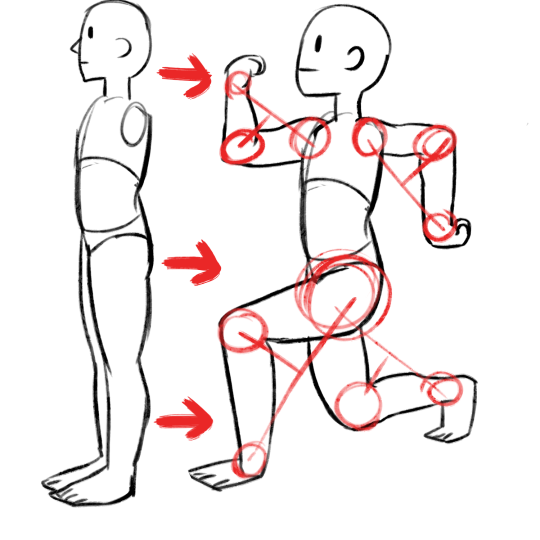
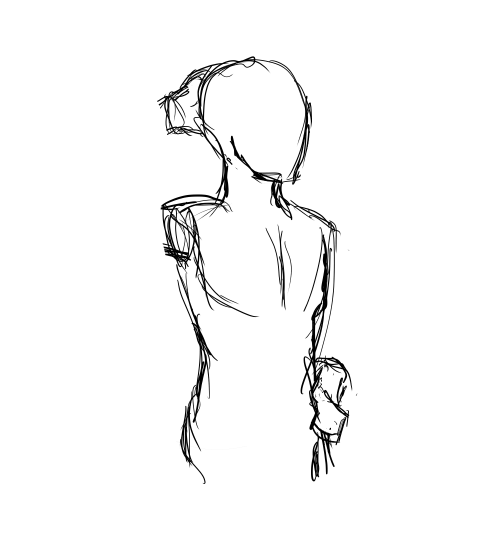
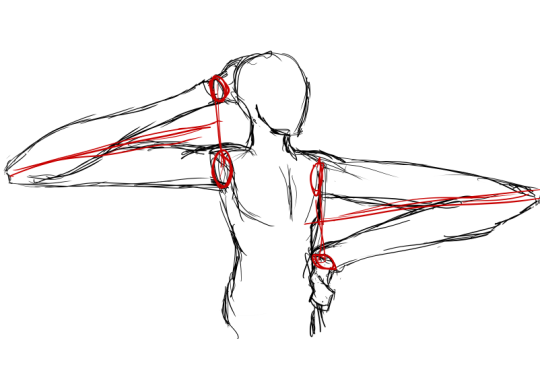
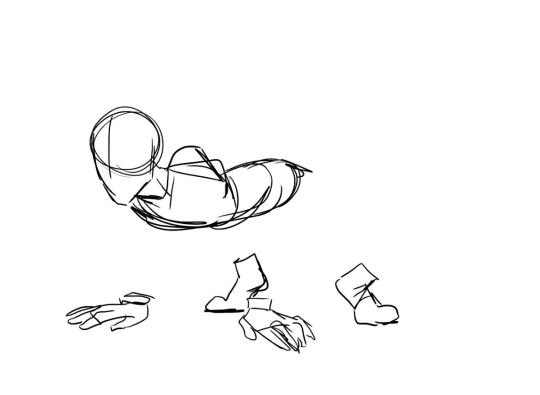
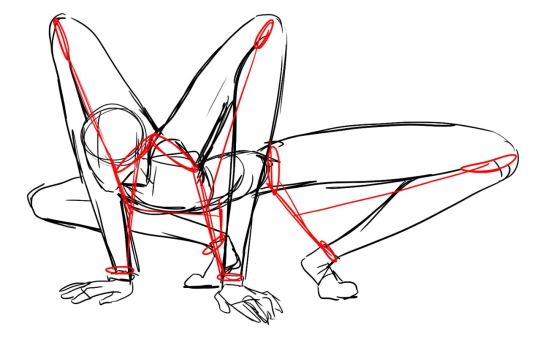
This week I’ve prepared some tips for everyone who is confused with arms. I know that pronation and supination is confusing and I recommend to learn in by heart ❤
I have also announcement!
The day is approaching when I will release ebook or Gumroad PDF with all my anatomy tips + additional lessons + commentary.
I still am thinking how I will publish this but it will be done. Anyone who’s interested finally will be able to get everything in one place and some more good content. I will post some dates soon so look for that in next few weeks !
Woke up at 2am and couldn’t fall back asleep so I made a tutorial on the Photoshop techniques I use most frequently. Starting with the sketch:
adjustment layers: specifically the hue/saturation slider in this case, allows you to color correct quickly
lasso tool: for sharp edges!
alpha lock: useful for painting within a pre-defined area (especially useful when painting characters)
x (hotkey) : toggle between foreground + background colors- let’s you easily blend between 2 colors
ctrl/cmd click : quickly change current active layer. Especially useful if you’re burdened with too many layers (or just very disorganized)
clipping mask: similar to alpha lock, but can add details without changing/ painting directly on the previous layer. I often use them to test out + apply gradients.
layer styles: I didn’t use any in this image, but the possibilities for layer styles endless, from simply adding a quick outline (useful for die cut demarcations when making stickers!) to creating more seemingly complex appearances. Here’s a gif of Nick Carver using layer styles (a combo of drop shadows + inner shadows) to quickly make the illusion of snow but with simple strokes.




 wupacing
